

Create Combined Card Payments
This guide explains how to process combined payment transactions using multiple payment methods in a single purchase. Combined payments allow customers to split the total amount across several cards, whether credit or debit, providing greater flexibility for larger purchases.
Requirements
Before following the steps, you need to:
- Create your account by contacting the Integration Support team to get your API credentials
client_idandclient_secret. - Generate your token with your credentials using the Authentication endpoint.
Getnet provides a Postman Collection to help you to replicate these use cases locally. You can also test the API in sandbox using the API Reference available in the documentation.
Use Cases Specifics
When integrating any Getnet solution, market-specific requirements apply. Be sure to review the resources below before you go live:
You can also use test cards to simulate specific scenarios. More information about specific requirements for each country can be found in the Developer Resources section of the Getnet documentation.
Payment facilitators: When Getnet enables your credential as a payment facilitator, you must also send the
data.sub_merchantobject in the combined payment data. See Payment Facilitators.
Platform availability
Combined payments are supported across multiple markets. For a complete reference of payment methods available in each country, see Combined Payments Availability.
Combined Payment Process
This section guides you through creating a combined payment transaction where a customer can use multiple cards to complete a single purchase. The process involves authorizing multiple payment methods simultaneously and optionally capturing them later.
The diagram below illustrates the complete combined payment flow, showing how multiple cards are tokenized and authorized in a single request:
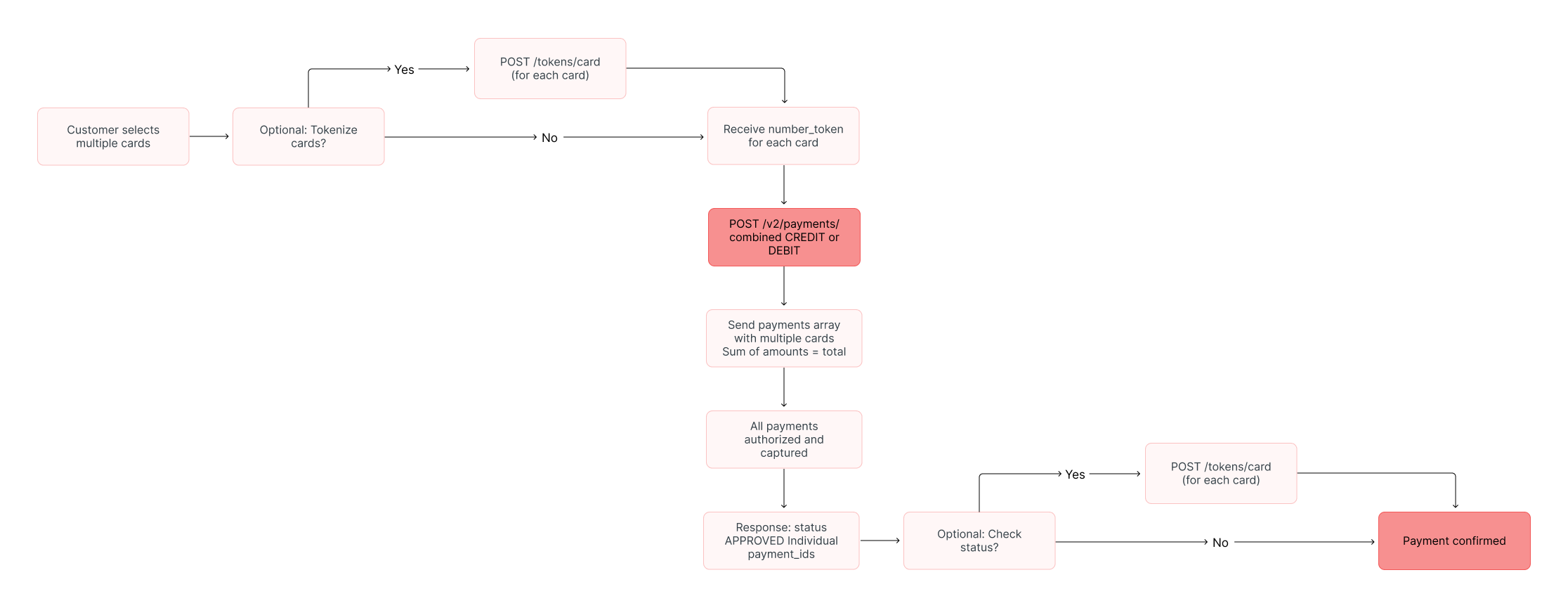
Tokenize Card Data (Optional)
Instead of sending the raw card numbers in your payment request, you can use tokenization to enhance security and reduce PCI DSS compliance scope. To use tokenized cards:
- Tokenize each card by calling the Card Tokenization endpoint with the
card_numberandcustomer_id. - In your payment request, replace the
card.numberfield withcard.number_tokenusing the token value received from the tokenization endpoint for each payment method.
If you send card.number_token, you don’t need to include the card.number property in the request. You can use either the raw card number or the tokenized version, but not both. For complete details on tokenization, see the Tokenization and Vault documentation.
Step 1: Authorize the Combined Payment
A combined payment starts with creating multiple payment authorizations in a single request. Use the Combined Payments - Authorize endpoint to process multiple payment methods simultaneously.
The combined payment structure allows you to specify an array of payment methods, each with its own card details and amount. The sum of all individual payment amounts must equal the total order amount.
The table below lists the minimum fields you need to send:
| Attribute | Description | Required |
|---|---|---|
idempotency_key | Unique identifier to prevent duplicate charges. | Yes |
order_id | Merchant reference ID used for reconciliation. | Yes |
request_id | Trace identifier for idempotency audits and support follow-up. | Recommended |
data.amount | Total transaction amount in cents (must equal sum of all payments). | Yes |
data.currency | ISO currency code used in the transaction. | Yes |
data.customer | Customer details (name, email, phone, document, full billing address). Mandatory in production to avoid antifraud blocks. | Yes (Prod) |
data.payments[] | Array of payment objects, each containing payment method details. | Yes |
data.payments[].payment_method | Must be CREDIT or DEBIT for each payment. | Yes |
data.payments[].transaction_type | Defines how the transaction is processed (FULL, INSTALL_NO_INTEREST, INSTALL_WITH_INTEREST). | Yes |
data.payments[].number_installments | Number of instalments (use 1 for a single payment). | Yes |
data.payments[].amount | Amount for this specific payment method in cents. | Yes |
data.payments[].card | Card data set (number, brand, expiration_month, expiration_year, security_code, cardholder_name). | Yes |
data.additional_data.device | Device fingerprint information (ip_address, device_id, finger_print) for antifraud analysis. | Yes (Prod) |
The objects required for antifraud validation must include the following fields:
| Object / Field | Description |
|---|---|
customer.first_name | Customer’s first name |
customer.last_name | Customer’s last name |
customer.email | Customer email address |
customer.phone_number | Phone number (international format) |
customer.document_type | Document type (e.g., CPF, DNI, etc.) |
customer.document_number | Document number (without punctuation) |
customer.billing_address.street | Street name |
customer.billing_address.number | Address number |
customer.billing_address.district | District or neighbourhood |
customer.billing_address.city | City |
customer.billing_address.state | State or province |
customer.billing_address.country | Country code (ISO) |
customer.billing_address.postal_code | Postal or ZIP code |
additional_data.device.ip_address | Customer’s IP address |
additional_data.device.device_id | Device fingerprint session ID (UUIDv4) |
additional_data.device.finger_print | Fingerprint hash generated by the antifraud script |
Antifraud data is mandatory for production environments. Transactions missing device fingerprint or customer information will be automatically blocked by antifraud teams to prevent fraud. See the Antifraud documentation for complete implementation details.
At the end of a successful authorization, you will receive a payment_id, which is used to identify this transaction.
The following code block shows an example of a combined payment request using two different cards:
curl --request POST \
  --url https://api-sbx.globalgetnet.com/dpm/payments-gwproxy/v2/payments/combined \
  --header 'authorization: Bearer ' \
  --header 'content-type: application/json' \
  --header 'x-seller-id: 54f88e68-7764-4e87-8830-756b1e2c02f8' \
  --header 'x-transaction-channel-entry: XX' \
  --data '{
  "idempotency_key": "63c7f8ee-51a6-470d-bb76-ef762b62bfb9",
  "request_id": "daac03dc-73db-453f-9bea-b1391669d5d3",
  "order_id": "ORDER-10187383",
  "data": {
    "amount": 200000,
    "currency": "BRL",
    "customer_id": "test",
    "customer": {
      "first_name": "John",
      "last_name": "Doe",
      "email": "[email protected]",
      "document_type": "CPF",
      "document_number": "12345678900",
      "phone_number": "+5511999999999",
      "billing_address": {
        "street": "Av. Paulista",
        "number": "1000",
        "complement": "Apto 101",
        "district": "Bela Vista",
        "city": "São Paulo",
        "state": "SP",
        "country": "BR",
        "postal_code": "01310-100"
      }
    },
    "payments": [
      {
        "payment_method": "CREDIT",
        "save_card_data": false,
        "transaction_type": "FULL",
        "number_installments": 1,
        "amount": 120000,
        "soft_descriptor": "LOJA*TESTE*COMPRA-123",
        "card": {
          "number": "5155901222260000",
          "expiration_month": "09",
          "expiration_year": "30",
          "cardholder_name": "Card Holder One",
          "security_code": "517"
        }
      },
      {
        "payment_method": "CREDIT",
        "save_card_data": false,
        "transaction_type": "FULL",
        "number_installments": 1,
        "amount": 80000,
        "soft_descriptor": "LOJA*TESTE*COMPRA-123",
        "card": {
          "number": "4012001037141112",
          "expiration_month": "12",
          "expiration_year": "30",
          "cardholder_name": "Card Holder Two",
          "security_code": "123"
        }
      }
    ],
    "additional_data": {
      "device": {
        "ip_address": "192.168.1.1",
        "device_id": "63c7f8ee-51a6-470d-bb76-ef762b62bfb9",
        "finger_print": "1a2b3c4d5e6f7g8h9i0j"
      }
    }
  }
}'Example of response with all payments APPROVED:
{
  "idempotency_key": "63c7f8ee-51a6-470d-bb76-ef762b62bfb9",
  "seller_id": "e0ed6f00-fdc5-46d6-9557-6a2cac641b09",
  "payment_id": "053de7f9-3725-437b-bdfc-bbf3ed0acb75",
  "order_id": "ORDER-10187383",
  "amount": 200000,
  "currency": "BRL",
  "status": "APPROVED",
  "received_at": "2025-10-31T13:40:47.382Z",
  "payments": [
    {
      "payment_id": "053de7f9-3725-437b-bdfc-bbf3ed0acb75-1",
      "amount": 120000,
      "status": "APPROVED",
      "payment_method": "CREDIT",
      "transaction_id": "MCC50205G1020",
      "authorized_at": "2025-10-31T13:40:47.382Z",
      "reason_code": "00",
      "reason_message": "captured",
      "brand": "MASTERCARD",
      "authorization_code": "204050"
    },
    {
      "payment_id": "053de7f9-3725-437b-bdfc-bbf3ed0acb75-2",
      "amount": 80000,
      "status": "APPROVED",
      "payment_method": "CREDIT",
      "transaction_id": "MCC50205G1021",
      "authorized_at": "2025-10-31T13:40:47.582Z",
      "reason_code": "00",
      "reason_message": "captured",
      "brand": "VISA",
      "authorization_code": "204051"
    }
  ]
}Step 2: Check the Payment Status (Optional)
The combined payment authorization response will show the overall status and individual status for each payment method.
Because some payments are processed asynchronously, the status can change over time. To get the latest status of a transaction, use the Get Transaction endpoint.
For real-time updates without polling, it is recommended to use Webhooks to receive notifications for every status change.
Next Steps
Now that you have successfully created a combined payment, you can explore more features of the Getnet Global API:
- Learn how to create Payments with Installments.
- Read about 3DS Payments.
- Explore Tokenization and Vault to securely store card data.